
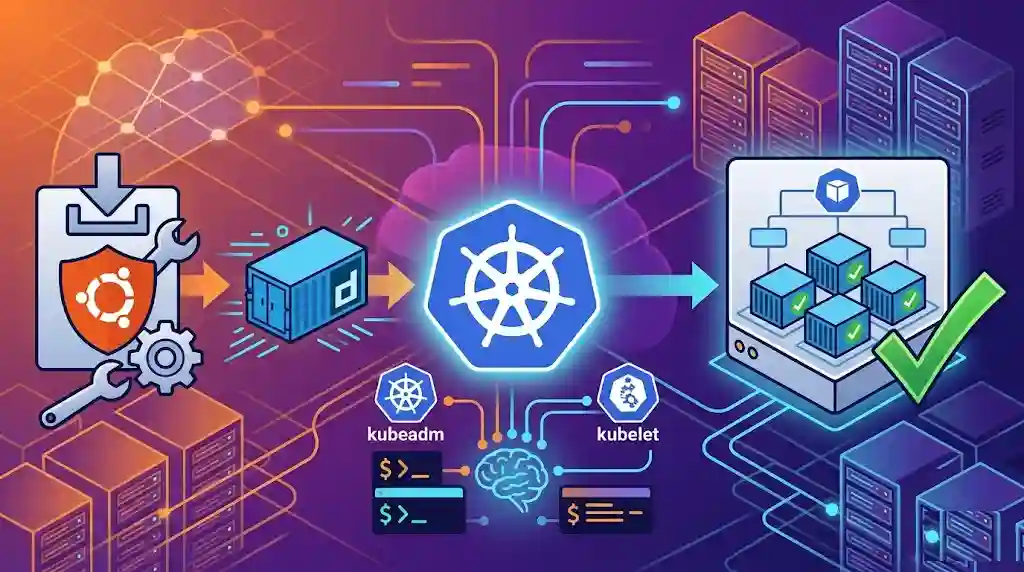
In this tutorial, we will walk through the entire process of setting up a reliable, single-node Kubernetes cluster directly on bare metal.
sudo. This tutorial specifically targets Ubuntu 22.04 LTS.
Tutorial Roadmap
1. Prerequisites & What You Need
2. Prepare Your Server
3. Install containerd
4. Install Kubernetes Tools
5. Initialize the Kubernetes Cluster
6. Install a Pod Network (CNI Plugin)
7. Allow Workloads on the Control Plane Node
8. Verify Your Cluster
9. Troubleshooting Common Issues
10. Next Steps
1. Prerequisites & What You Need
System Requirements:
OS: Ubuntu 22.04 LTS (recommended) or 20.04 LTS
CPU: 2 cores minimum (4+ recommended)
RAM: 2 GB minimum (4 GB+ recommended)
Disk: 20 GB free space
Network: Full internet access, static IP preferred
Access: Root or sudo privileges
What You'll Learn:
What containerd is and why Kubernetes needs it.
How to install and configure containerd as the container runtime.
How to install kubeadm, kubelet, and kubectl.
How to initialize a single-node Kubernetes cluster and verify it works.
2. Prepare Your Server
2.1 Update the System
# Update package index
sudo apt-get update

# Upgrade all installed packages
sudo apt-get upgrade -y

# Install required utilities
sudo apt-get install -y curl wget apt-transport-https ca-certificates gnupg lsb-release
2.2 Disable Swap
Kubernetes requires swap to be disabled — it causes unpredictable scheduler behavior.
# Disable swap immediately
sudo swapoff -a

# Permanently disable swap in /etc/fstab
sudo sed -i '/ swap / s/^\(.*\)$/#\1/g' /etc/fstab

# Verify swap is off (output should show 0B)
free -h | grep Swap
2.3 Load Required Kernel Modules
# Create config to load modules at boot
cat <<EOF | sudo tee /etc/modules-load.d/k8s.conf
overlay
br_netfilter
EOF

# Load modules immediately (no reboot needed)
sudo modprobe overlay
sudo modprobe br_netfilter

# Verify they are loaded
lsmod | grep br_netfilter
lsmod | grep overlay
2.4 Configure Kernel Networking Parameters
# Write sysctl configuration
cat <<EOF | sudo tee /etc/sysctl.d/k8s.conf
net.bridge.bridge-nf-call-iptables  = 1
net.bridge.bridge-nf-call-ip6tables = 1
net.ipv4.ip_forward                 = 1
EOF

# Apply settings immediately
sudo sysctl --system

# Verify ip_forward is enabled (should output: 1)
cat /proc/sys/net/ipv4/ip_forward
3. Install containerd
containerd is the container runtime — it's what actually runs your containers. Kubernetes talks to it via the CRI (Container Runtime Interface).
3.1 Install the Package
# Add Docker's official GPG key
sudo install -m 0755 -d /etc/apt/keyrings

curl -fsSL https://download.docker.com/linux/ubuntu/gpg | \
  sudo gpg --dearmor -o /etc/apt/keyrings/docker.gpg

sudo chmod a+r /etc/apt/keyrings/docker.gpg

# Add the Docker/containerd repository
echo \
  "deb [arch=$(dpkg --print-architecture) signed-by=/etc/apt/keyrings/docker.gpg] \
  https://download.docker.com/linux/ubuntu \
  $(. /etc/os-release && echo "$VERSION_CODENAME") stable" | \
  sudo tee /etc/apt/sources.list.d/docker.list > /dev/null

# Update and install
sudo apt-get update
sudo apt-get install -y containerd.io
3.2 Configure containerd for Kubernetes
# Generate default configuration
sudo mkdir -p /etc/containerd
containerd config default | sudo tee /etc/containerd/config.toml

# Enable SystemdCgroup — CRITICAL for Kubernetes compatibility
sudo sed -i 's/SystemdCgroup = false/SystemdCgroup = true/' /etc/containerd/config.toml

# Verify the change
grep 'SystemdCgroup' /etc/containerd/config.tomlSystemdCgroup = true is essential. Without it, nodes become unstable and pods fail to run correctly.
3.3 Start and Enable containerd
# Restart to apply new config
sudo systemctl restart containerd

# Enable auto-start on boot
sudo systemctl enable containerd

# Verify it's running
sudo systemctl status containerd
# Expected: Active: active (running)
4. Install Kubernetes Tools
You need three components: kubeadm (bootstraps the cluster), kubelet (node agent that manages pods), and kubectl (CLI to interact with the cluster).
4.1 Add the Kubernetes Repository
# Add the Kubernetes GPG key
curl -fsSL https://pkgs.k8s.io/core:/stable:/v1.29/deb/Release.key | \
  sudo gpg --dearmor -o /etc/apt/keyrings/kubernetes-apt-keyring.gpg

# Add the repository
echo 'deb [signed-by=/etc/apt/keyrings/kubernetes-apt-keyring.gpg] \
  https://pkgs.k8s.io/core:/stable:/v1.29/deb/ /' | \
  sudo tee /etc/apt/sources.list.d/kubernetes.list

# Update package index
sudo apt-get update
4.2 Install and Pin the Tools
# Install all three components
sudo apt-get install -y kubelet kubeadm kubectl

# Pin versions to prevent accidental upgrades
sudo apt-mark hold kubelet kubeadm kubectl

# Verify
kubeadm version
kubectl version --client
kubelet --versionapt-mark hold prevents these components from being upgraded during a general apt upgrade, which protects cluster compatibility.
4.3 Enable kubelet
sudo systemctl enable --now kubelet
# Note: kubelet will repeatedly fail until kubeadm init is run — this is normal.
5. Initialize the Kubernetes Cluster
5.1 Run kubeadm init
Replace 192.168.1.100 with your server's actual IP address.
sudo kubeadm init \
  --pod-network-cidr=10.244.0.0/16 \
  --apiserver-advertise-address=192.168.1.100
⏳ This takes 2–5 minutes. kubeadm pulls images, sets up TLS certificates, configures etcd, and starts all control plane components.
When complete, you will see output containing your join command. Save the kubeadm join command; you will need it to add worker nodes later. The token expires after 24 hours.
5.2 Configure kubectl Access
# For a regular user:
mkdir -p $HOME/.kube
sudo cp -i /etc/kubernetes/admin.conf $HOME/.kube/config
sudo chown $(id -u):$(id -g) $HOME/.kube/config

# OR if running as root, add to .bashrc:
echo 'export KUBECONFIG=/etc/kubernetes/admin.conf' >> ~/.bashrc
source ~/.bashrc
6. Install a Pod Network (CNI Plugin)
Kubernetes doesn't include built-in networking. You must install a CNI plugin before pods can communicate. We'll use Flannel — the simplest option for beginners.
# Install Flannel
kubectl apply -f https://github.com/flannel-io/flannel/releases/latest/download/kube-flannel.yml

# Watch flannel pods start (~30 seconds)
kubectl get pods -n kube-flannel --watch
# Press Ctrl+C when all pods show STATUS: Running7. Allow Workloads on the Control Plane Node
By default, Kubernetes prevents workloads from scheduling on the control plane. For a single-node setup, remove this restriction:
# Remove the taint (note the trailing dash — it means "remove")
kubectl taint nodes --all node-role.kubernetes.io/control-plane-

# Verify it's removed
kubectl describe node | grep Taints
8. Verify Your Cluster
8.1 Check Node Status
kubectl get nodes
# Expected output:
# NAME           STATUS   ROLES           AGE   VERSION
# your-server    Ready    control-plane   5m    v1.29.x
8.2 Check System Pods
# All pods should be Running or Completed
kubectl get pods -n kube-system

# Or check everything at once
kubectl get pods --all-namespaces
8.3 Run a Test Workload
# Deploy a test nginx pod
kubectl run nginx-test --image=nginx --port=80

# Watch until STATUS shows Running
kubectl get pod nginx-test --watch

# Expose it as a NodePort service
kubectl expose pod nginx-test --type=NodePort --port=80

# Find the assigned port
kubectl get svc nginx-test

# Test it (replace IP and PORT)
curl http://192.168.1.100:PORT

# Clean up
kubectl delete pod nginx-test
kubectl delete svc nginx-test
✅ Success! If you see an HTML response from Nginx, your Kubernetes cluster is fully operational.
9. Troubleshooting Common Issues
| Problem | Likely Cause | Fix |
|---|---|---|
| Node stays NotReady | CNI not installed | Install Flannel or another CNI plugin |
| kubeadm init fails with "swap" | Swap still enabled | Run sudo swapoff -a |
| Pods stuck in Pending | No CNI or node taint | Install CNI; remove control-plane taint |
| containerd not starting | Config syntax error | Regenerate config: containerd config default | sudo tee /etc/containerd/config.toml |
| kubectl: connection refused | KUBECONFIG not set | Run export KUBECONFIG=/etc/kubernetes/admin.conf |
| Pods in CrashLoopBackOff | SystemdCgroup=false | Set SystemdCgroup=true in config.toml, restart containerd |
Useful Diagnostic Commands:
# Check kubelet logs
sudo journalctl -u kubelet -f

# Check containerd logs
sudo journalctl -u containerd -f

# Detailed pod info (events are at the bottom)
kubectl describe pod

# View recent events
kubectl get events -n default --sort-by='.lastTimestamp'

# Check component health
kubectl get componentstatuses

# Full reset if you need to start over
sudo kubeadm reset
sudo rm -rf $HOME/.kube
sudo iptables -F && sudo iptables -t nat -F
10. Next Steps
Add Worker Nodes: Use the
kubeadm joincommand from Step 5 on additional servers.Explore kubectl: Learn
get,describe,logs,exec,apply, anddelete.Deploy an Application: Try deploying a multi-container app with a Deployment and Service.
Install Helm: The Kubernetes package manager makes deploying apps much easier.
Set Up Ingress: Install an Nginx Ingress controller to route external HTTP traffic.
Enable Monitoring: Deploy the Prometheus + Grafana stack for cluster observability.
Practice RBAC: Learn Role-Based Access Control to secure your cluster.